What Rhino stores separately
Rhino 8 does not keep every interface choice in one portable file. Application options, toolbar customizations, schemes, and window layouts overlap, but they are not identical. A reliable backup uses several small steps.
Step 1
Export application options
Run OptionsExport in Rhino. Choose a safe folder outside Rhino’s application directories and save the exported options file.
This captures selected application options that can later be restored with OptionsImport. McNeel documents both commands in the official OptionsExport guide.
Step 2
Copy the complete Rhino 8 settings folder
Close Rhino, press Win + R, and open:
%AppData%\McNeel\Rhinoceros\8.0\settings
Copy the entire settings folder to a dated backup location, for example Rhino8-settings-backup-2026-07-19. Keeping the whole folder preserves scheme XML files and related toolbar resources that an options export may not cover.
Step 3
Save and export custom window layouts
Run WindowLayout. Save the current arrangement if it is not already a named custom layout, then export important custom layouts as .rhw files.
Window layouts cover container positions, sizes, visibility, and tab order. They do not include toolbar button content or every application option. See McNeel’s WindowLayout documentation.
Step 4
Save external RUI files before copying them
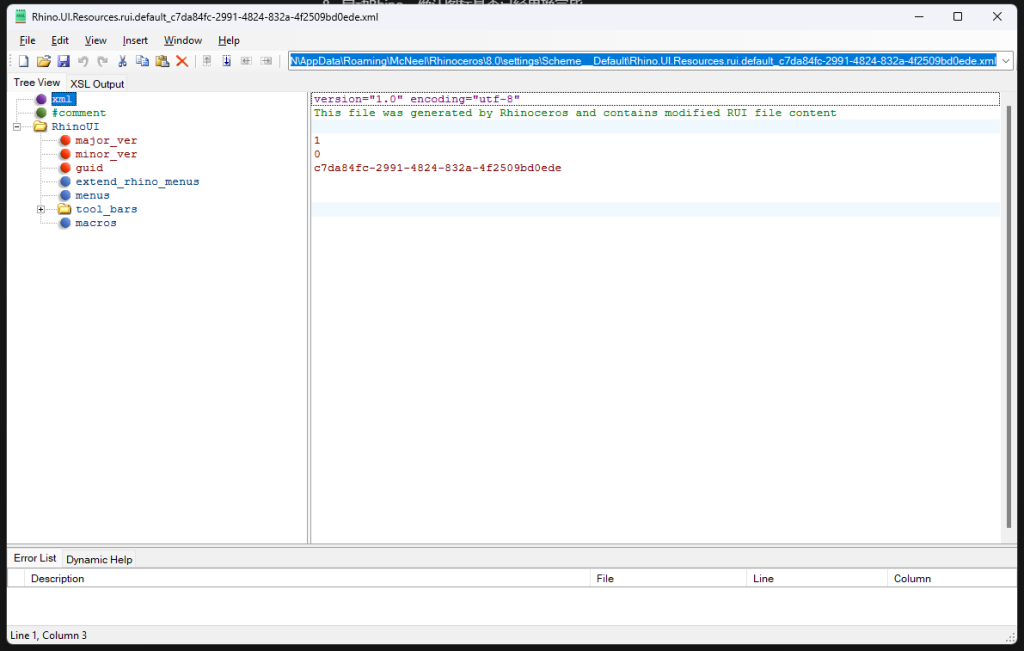
If you use a linked external .rui toolbar file, open Rhino’s Toolbars options and save it before copying it elsewhere. Rhino may store unsaved edits in an associated XML file rather than inside the RUI file itself.
McNeel recommends saving the RUI before making a backup or moving it to another computer. Review the official Toolbars options guide.
Step 5
Verify the backup
Open the backup folder and confirm that it contains files—not just empty folders. Keep a second copy on another drive or cloud storage if your Rhino workspace represents significant setup time.
- Options export file
- Complete Rhino 8
settingsfolder - Custom
.rhwwindow layouts - Saved external
.ruitoolbar files, if used
How to restore safely
Restore only the part that is broken. If application options changed, use OptionsImport. If a custom window arrangement changed, import the saved .rhw. If icon resources or scheme XML changed, compare the backup with the active scheme before replacing files.
Avoid copying an old settings folder over a newer Rhino installation without checking the current version. Keep the newer folder as an additional backup first.