Step 1
Back up your default theme folder
Press Win + R, enter %AppData%\McNeel\Rhinoceros\8.0\settings, and copy the settings folder to a safe location.
Step 2
Install an XML editor
Install Microsoft XML Notepad, or use another XML editor you trust.
Step 3
Open Rhino’s default XML file
Inside the settings folder, open Scheme__Default\Rhino.UI.Resources.rui.default_<guid>.xml. The exact GUID portion varies.
Step 4
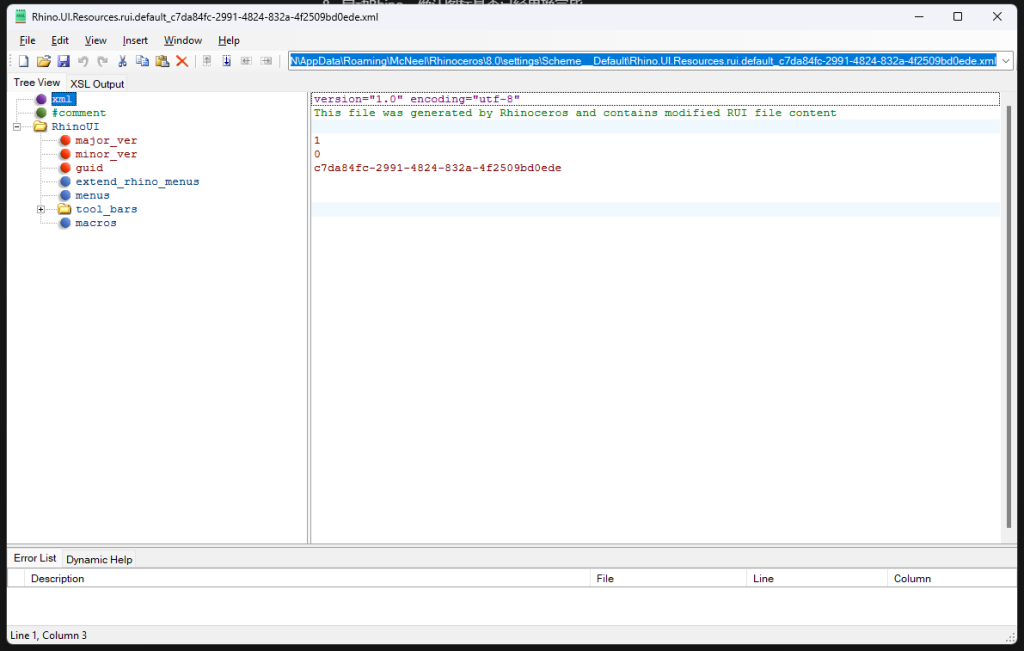
Confirm the tree structure
If the icons have not been modified, the file should show a tree similar to the example below.
Step 5
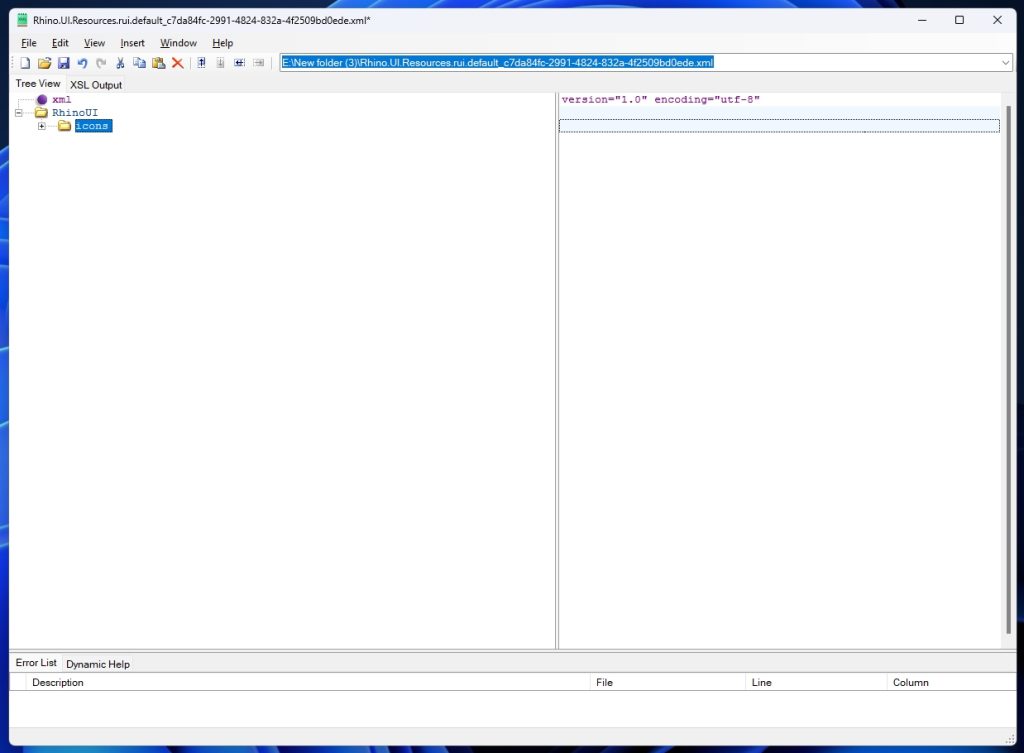
Open the RhinoUI XML file
Download your purchased files from Gumroad, then open the supplied icon XML file in a second editor window.
Step 6
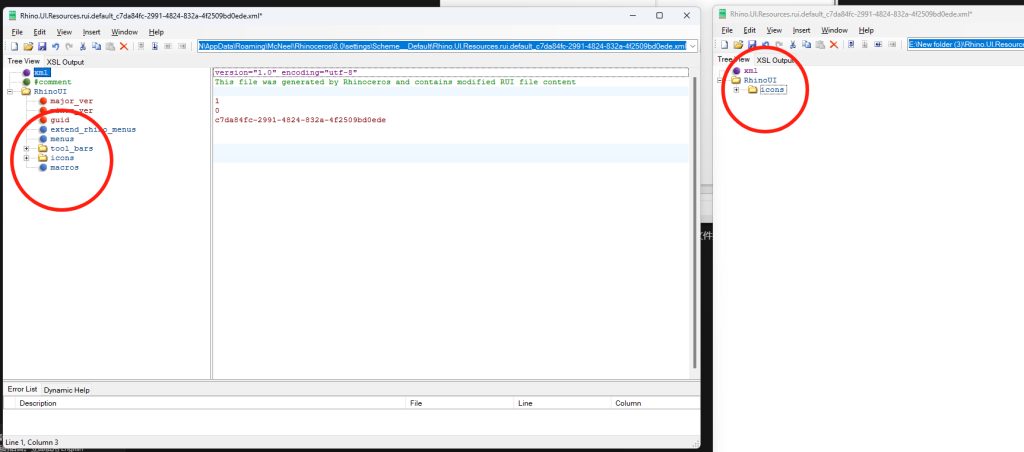
Copy the ICONS section
Hold Ctrl and drag the ICONS section from the RhinoUI file into the default theme file, placing it at the same level shown below. Save the edited file.
Step 7
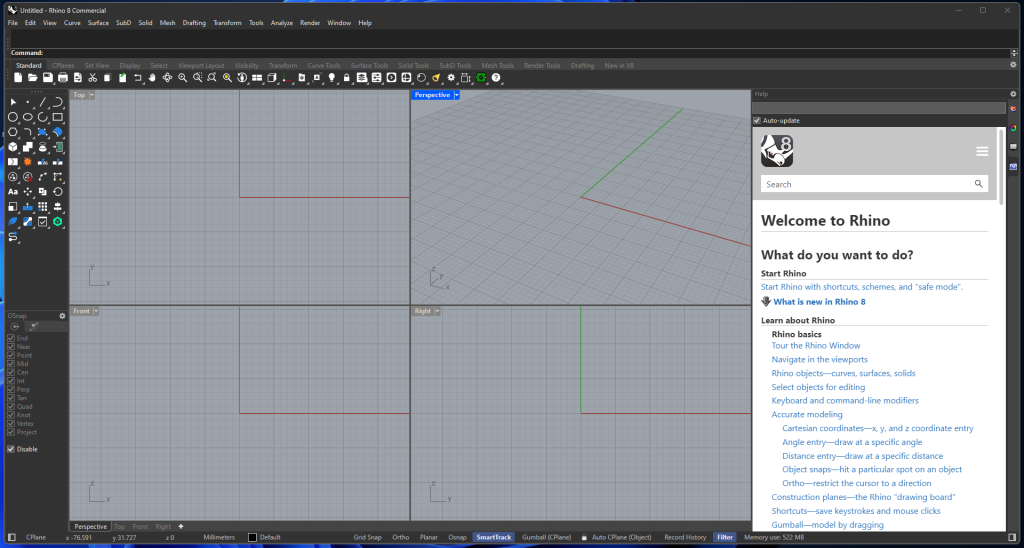
Start Rhino and verify
Launch Rhino 8 and check that the toolbar icons have been replaced successfully.
Step 8
Revert if needed
To restore the default icons, return to your backup or remove the imported ICONS section from the edited XML file.