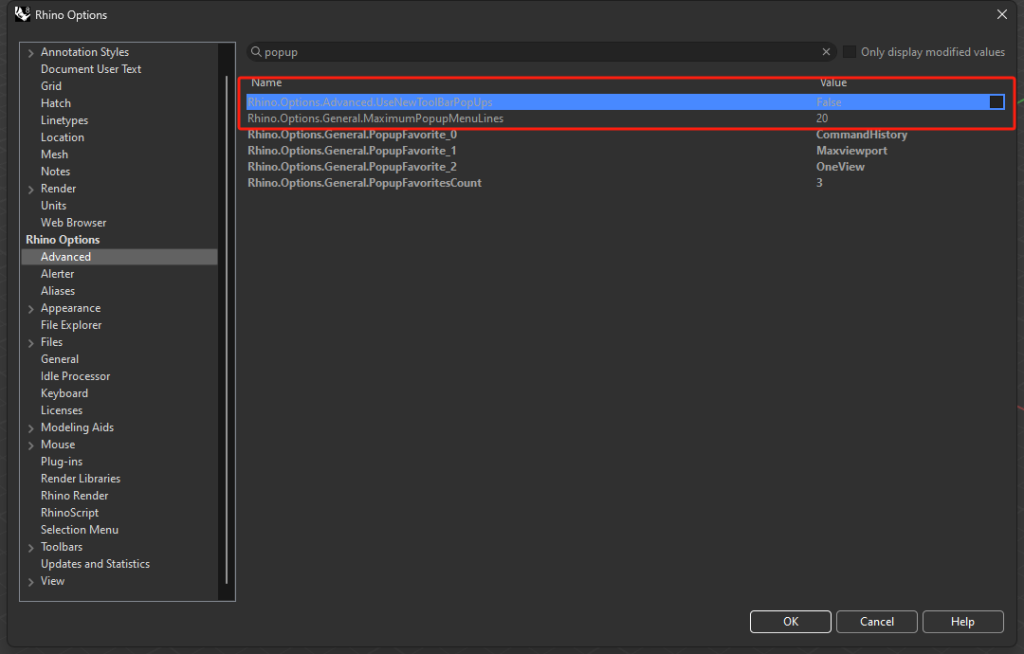
Before you begin, consider backing up your Rhino settings. Menu names may differ slightly between Rhino 8 updates.
Step 1
Open Containers
Type Containers in Rhino’s command line and press Enter.
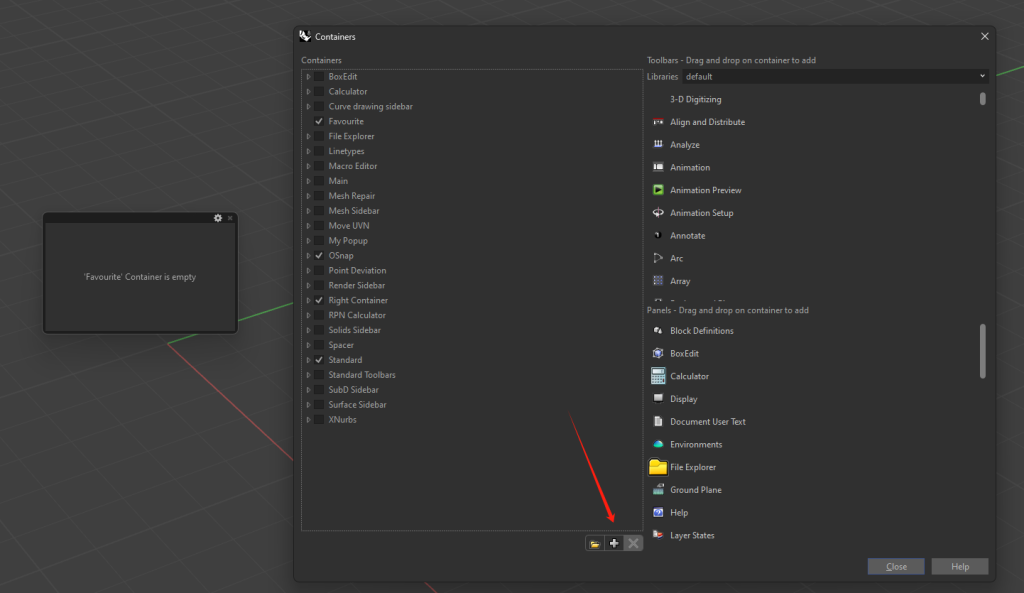
Step 2
Create a container
Add a new container and give it a recognizable name, such as Favourite.
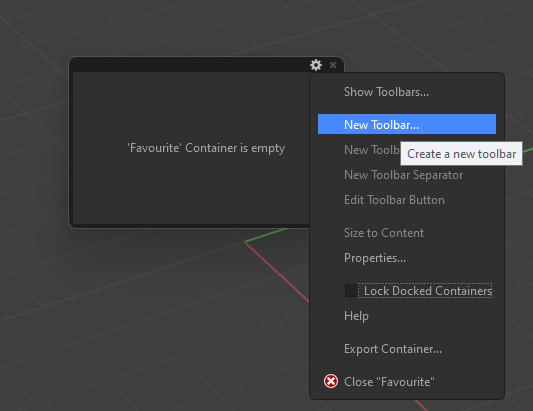
Step 3
Add a toolbar
Use the gear icon on the right side of the container, then choose the option to create a new toolbar.
Step 4
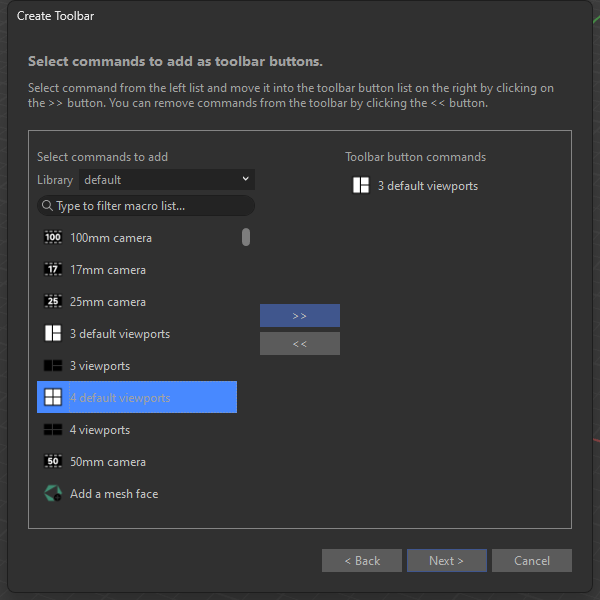
Choose your commands
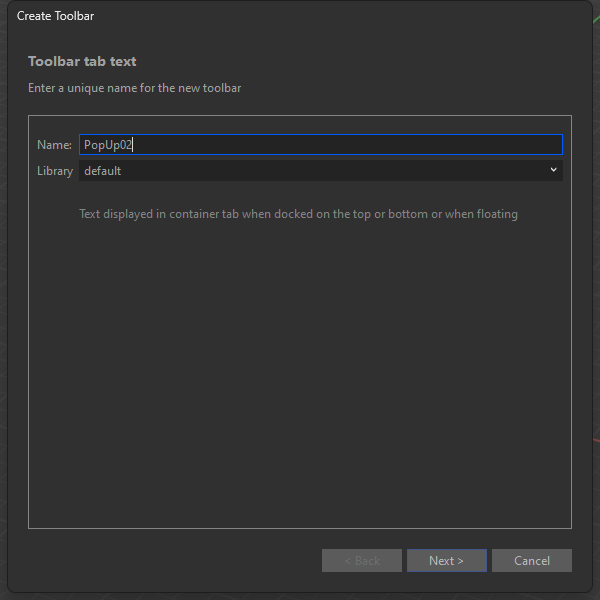
Rename the toolbar, then add the commands and icons you want in the popup.
Step 5
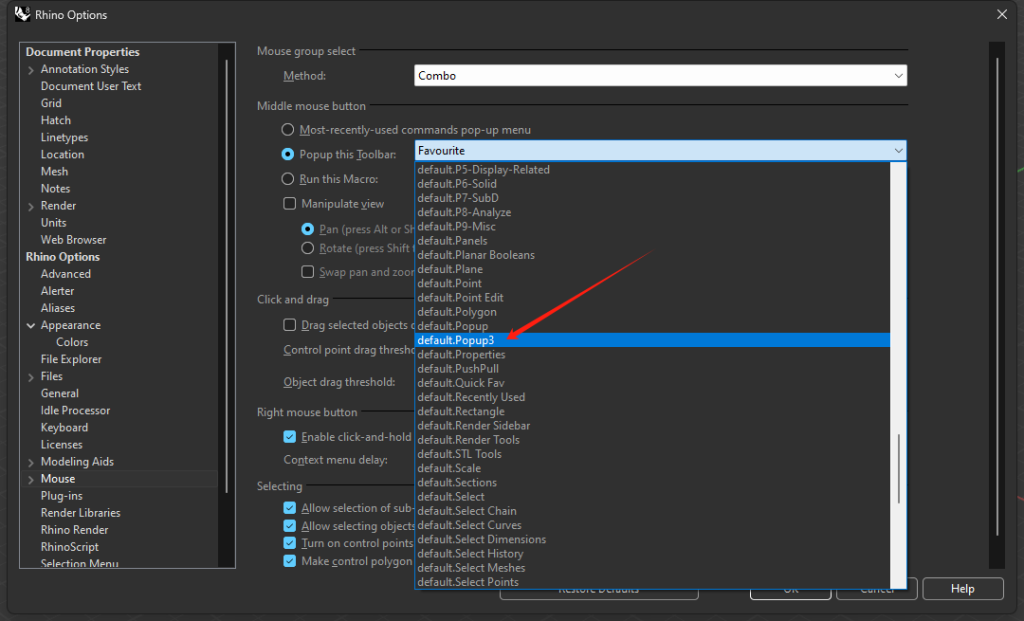
Assign it to the middle mouse button
Select the toolbar inside your new container—not the container itself—as the middle-mouse popup.
Step 6
Choose the popup style
Rhino provides two display styles for the middle-mouse menu. Try both and keep the one that best suits your workflow.